
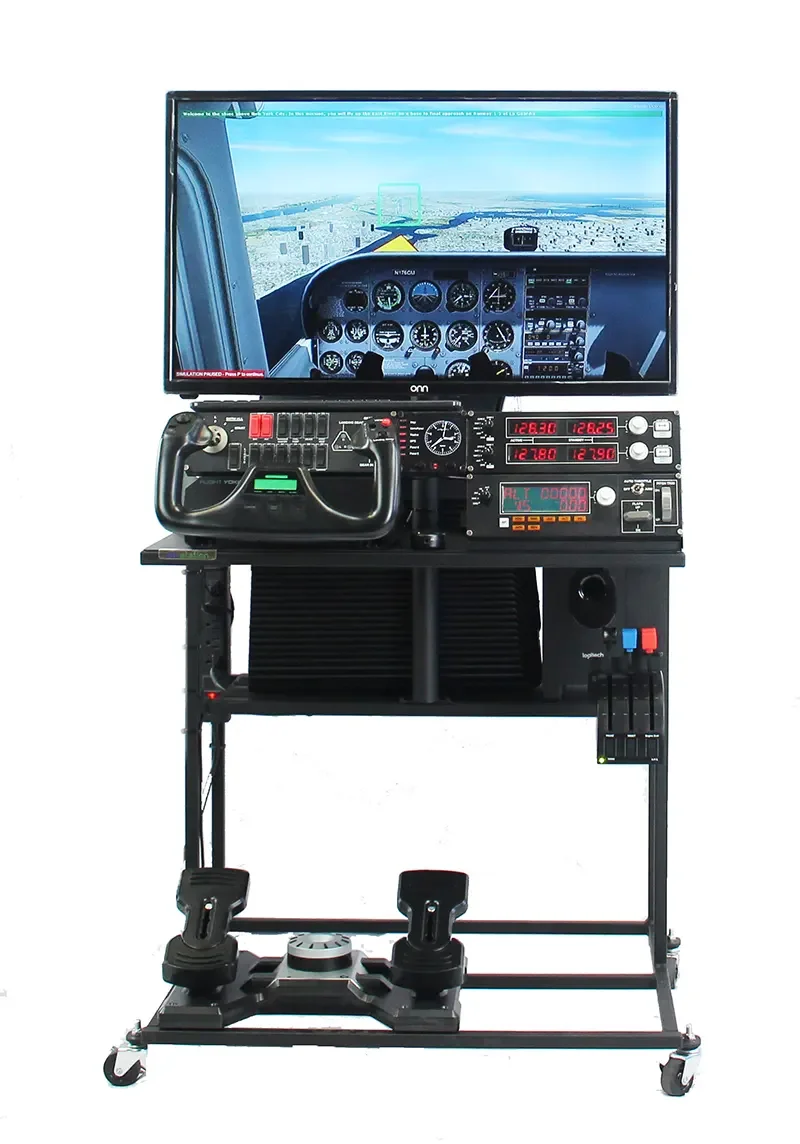
Explore the connections between controls and instruments
The Pro configuration adds a metal flight deck for students to work with navigation and communication controls. Instructors can connect instrument readings to a planned route, introduce navigation tasks gradually, and ask crews to explain each adjustment before making it.
Configuration at a glance
| Display | 32-inch HD widescreen; curved option listed in catalog |
|---|---|
| Instrument deck | NAV/COM radios, switch panel, autopilot, trim, and flaps |
| Controls | Yoke, throttle quadrant, and rudder pedals |
| Dimensions | 30.5 in wide × 31 in long × 58 in high |
| Software | Prepar3D |
| Warranty | One year for manufacturing defects |
Curriculum and classroom use
STEMPilot pairs simulator hardware with curriculum and guided learning missions. Use the equipment to connect a flight plan to mathematics, physics, navigation, and collaborative decision-making. Students should have a question to investigate before they take the controls.
Ask for the curriculum edition, lesson materials, and teacher training associated with your selected configuration. Discuss how a Flight Crew will share planning, observation, piloting, and review during your class period.
Plan your installation
Share your room layout, student age range, and class size with STEMPilot. Confirm power, access, display clearances, delivery arrangements, support, warranty coverage, and current specifications in your written proposal. Freight and any optional equipment should be itemized.
Is pricing available?
Request a current quote for the selected configuration, freight, optional equipment, and training. The existing catalog also lists current products.
Can this support a shared classroom?
Plan a rotation in which students work on flight planning and reflection while a crew uses the simulator. Confirm the equipment footprint and room circulation before ordering.
Configuration source: EduStation Pro in the official catalog ↗. Check your quote for final specifications.